LET'S TALK ABOUT 3D SCANNING |

|
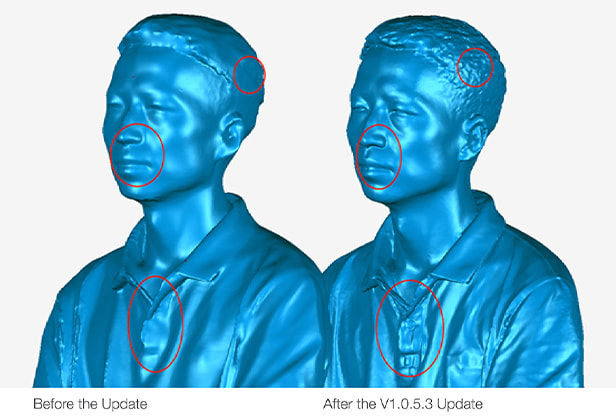
EinScan H users, download the latest software version V1.0.5.3 Exscan H that enables the capture of fine details when using Infrared Scanning, Face Scan Mode. With the newly developed algorithm, the software can capture more details around the face with invisible Infrared light. Check out the details below.
EinScan H is also useful in making 3D digital replicas of ancient artifacts which may be sensitive to white light. 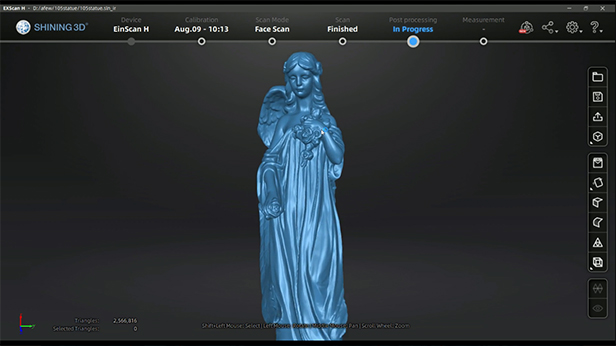 The combination of great hardware and software truly makes a difference in how much detail can be captured with 3D scanning technology. The team behind EinScan 3D scanners continues to innovate pushing frequent software updates and develping new software algorithms, so make sure you have the latest software to get the benefits of all the new features! Growshapes is an HP Silver Partner of HP 3D scanning solutions and the official U.S. distributor of Shining 3D EinScan 3D scanners. We are now carry the eviXscan 3D scanner from Evatronix as well!
See the innovators on Growshapes’ social media channels to get the latest expert news on innovation in 3D digitization, then share your thoughts and join the conversation about 3D digital innovation with #digitize3D.
0 Comments
With the latest EinScan HX v1.2.0.2 software update, a new mesh editing function has been added. Unlike other post-process function which only do a single operation, the new “Mesh Optimization” feature in EinScan HX software allows you to do both smooth and sharpen concurrently which will eliminate surface noise while keeping sharp details. You can choose the optimization intensity from 0 to 100%. You can do multiple iterations if not satisfied with current outcomes. This function performs well when the original data has a small point distance. For example, here’s a part of the tires scanned with 0.2mm resolution. 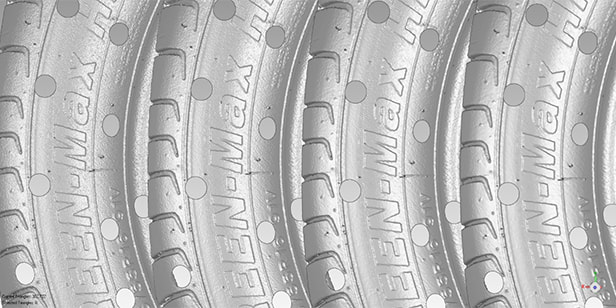 From left to right are original data / 20% / 50%/ 100% optimization. 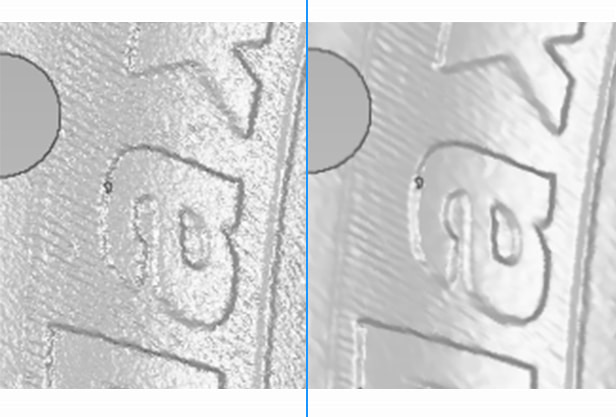 You can see that surface noise was well removed under 100% optimization, but the edges of the letters are still sharp. However, on a large point distance model, the details are already blurred. Using high optimization intensity will cause detail loss. Here is an example. 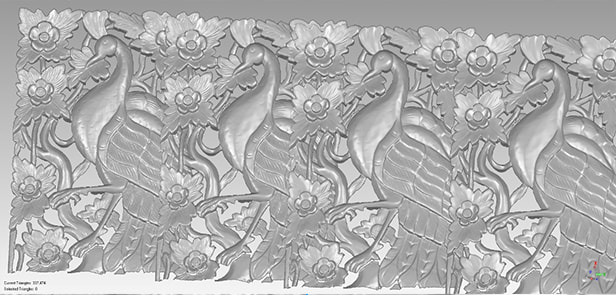 Same intensity from left to right while the resolution is 1mm. You can tell that the details on feathers are hard to tell with 100% optimization. All in all, we suggest using high intensity optimization (100%) for high resolution and low intensity optimization (20%) for low resolution. Play around with this feature to fine tune the generate the desired outcome. And if the resolution is beyond 1mm, we do not recommend applying mesh optimization. Hope this function can help you get a good scan result easier! Growshapes is an HP Silver Partner of HP 3D scanning solutions and the official U.S. distributor of Shining 3D EinScan 3D scanners. We are now carry the eviXscan 3D scanner from Evatronix as well!
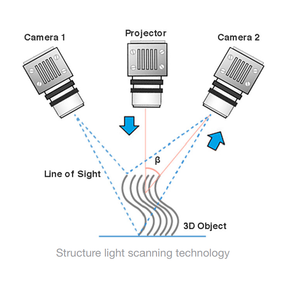
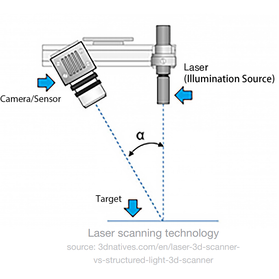
See the innovators on Growshapes’ social media channels to get the latest expert news on innovation in 3D digitization, then share your thoughts and join the conversation about 3D digital innovation with #digitize3D. We get asked this question a lot. That's why we are here to help. It's not easy to choose a 3D scanner that needs to capture different sizes, surfaces, shapes and textures. It also depends on your budget. The difference in price comes from different components such as the camera lens, projector, light source, and software complexity. Let's outline 4 important features you need to understand to decide which model would be most suited for your project. 1. Light Source - Structured Light Or Laser?
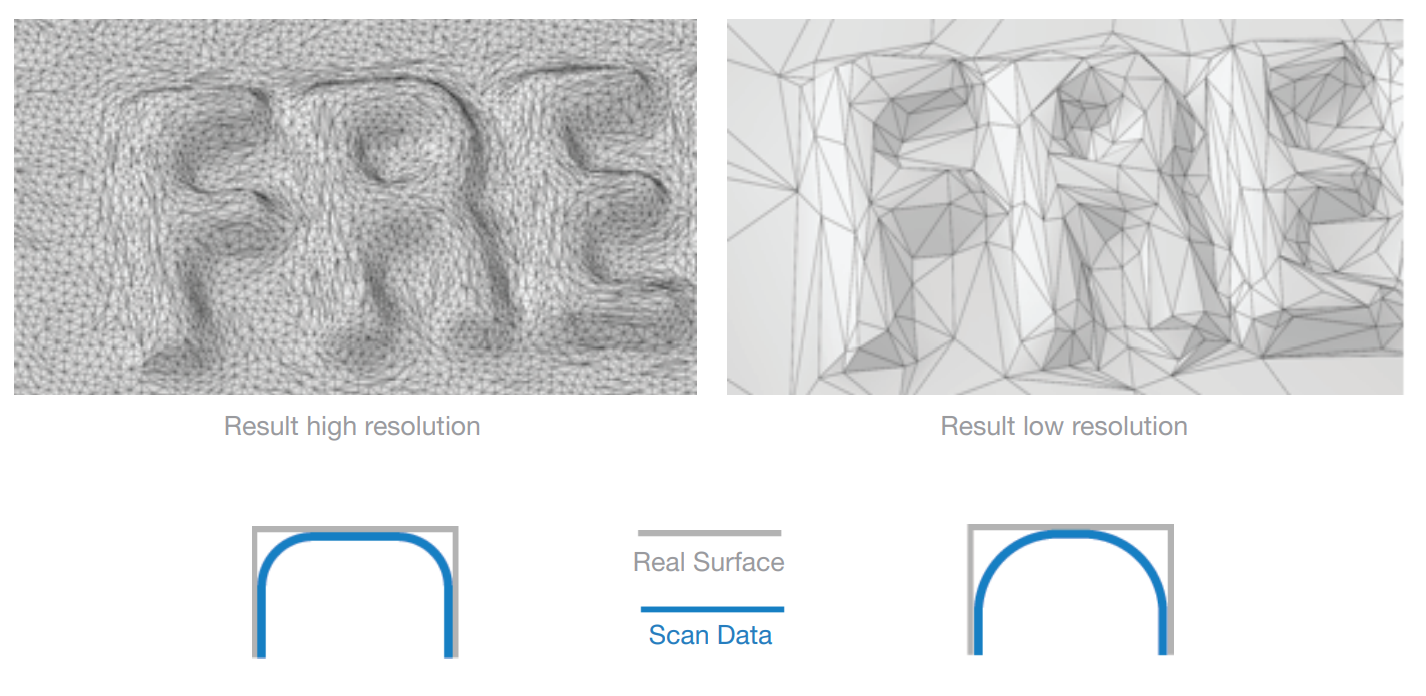
2. Accuracy and Resolution Accuracy The accuracy gives an information about the authenticity of a 3D model to the real object. Knowing the accuracy of your scanner is very important because it determines which model is most suitable for quality inspection, reverse engineering design, medical health, or any other applications with very rigid accuracy requirements. Usually, the higher accuracy the scanner is able to generate, the more applications it could be suitable for, and of course, the higher the cost. Remember though, not all 3D scanning projects require the highest accuracy, so consider your budget and requirements to make a decision on which model to purchase. The accuracy used in the specifications of the scanner usually refer to the accuracy of a single scan. The volumetric accuracy refers to the relationship between 3D data accuracy and object size; with EinScan Pro Series the accuracy is reduced by 0.3mm per meter. This data is based on measuring the center of sphere with marker alignment. The volumetric accuracy of EinScan HX in laser mode is 0.06 mm per meter.
With EinScan handheld 3D Scanners the Pro Series and the H series, the resolution can be changed depending on the object size to ensure the 3D scan data size is manageable. 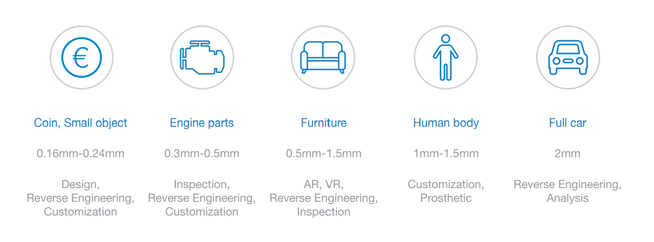 3. Scan Speed Scan speed is a specification that definese how long it takes to scan one given object. It especially matters when you are going to scan the human body, as people can not stay still for a long time, and it also helps to improve the work efficiency when you are 3D scanning large objects like cars, buildings, etc. Scan speed can be defined by the number of points collected per second, frames per second, or how many seconds it takes to do a single scan. The more points or frames collected per second, the faster the scan speed. 4. Desktop or Handheld Desktop 3D scanners are provides higher accuracy and enables automation of the whole 3D scan process. The EinScan Pro series handheld 3D scanners can be turned into a desktop/fixed 3D scanners with the Industrial Kit. For 3D scanning larger objects (like humans or cars), using the handheld 3D scanner is the only solution. So which model shall I buy?
Here is a comparison at a glance. 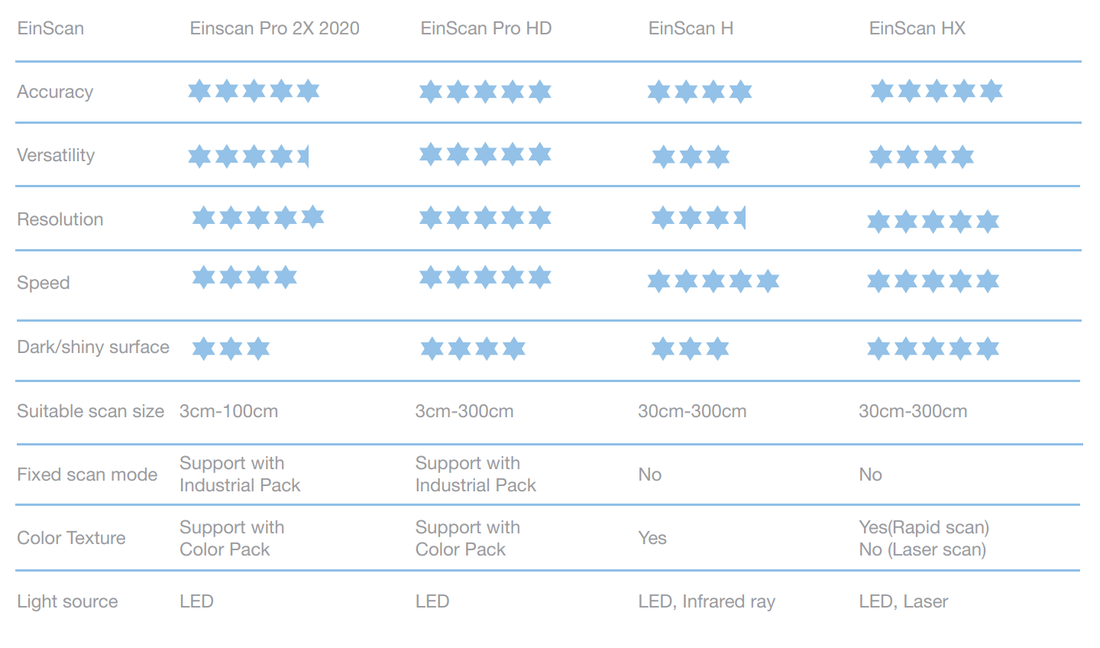 Accuracy Comparison In reality all of the above models have similar accuracies. EinScan Pro HD and EinScan Pro 2X 2020 both have the same accuracy of 0.045mm in Handheld HD mode, while it is 0.05mm for EinScan H in body and standard mode, and 0.04mm for EinScan HX in laser mode. So accuracy might not be a critical parameter for you to choose a proper device among EinScan series. If high accuracy is a top priority on your agenda, EinScan HX is the best choice among all EinScan scanners. Resolution Comparison EinScan Pro Series (2X 2020 & HD) achieves a higher resolution compared to EinScan H series. Resolution captured by EinScan Pro 2X 2020 is marginally higher than the Pro HD due to the single scan range being smaller. 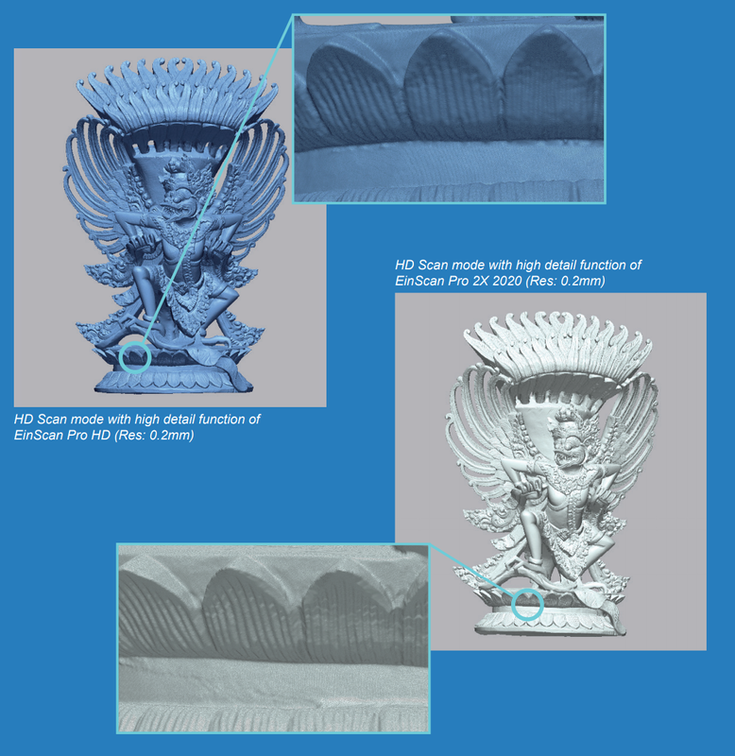 The EinScan H series have a different projecting pattern to the Pro Series thus the resolution is lower. But remember, the EinScan HX can achieve a higher accuracy vs. the Pro Series. 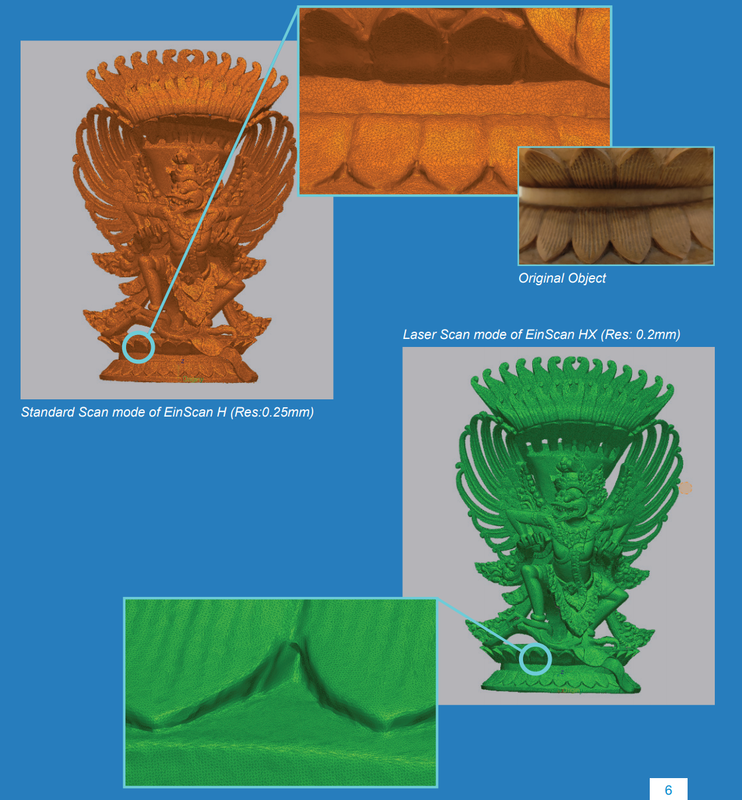 Scan Speed Comparison To compare the speed of scanners, two facts need to be considered: single scan range and the points captured per second. For points captured per second, in Handheld Rapid mode, all scanners of the EinScan Pro Series come with the same speed of 1,500,000 points/s. However as the EinScan Pro HD has a larger single scan range, it can scan large objects at a faster speed. EinScan H (standard scan&body scan) and EinScan-HX (rapid scan) come with the same scan speed in terms of points captured per second and scan range, which are all faster than Pro series. In the face scan mode of EinScan-H, the maximum scan range could reach 780mmx 900mm enabling a fast scan. 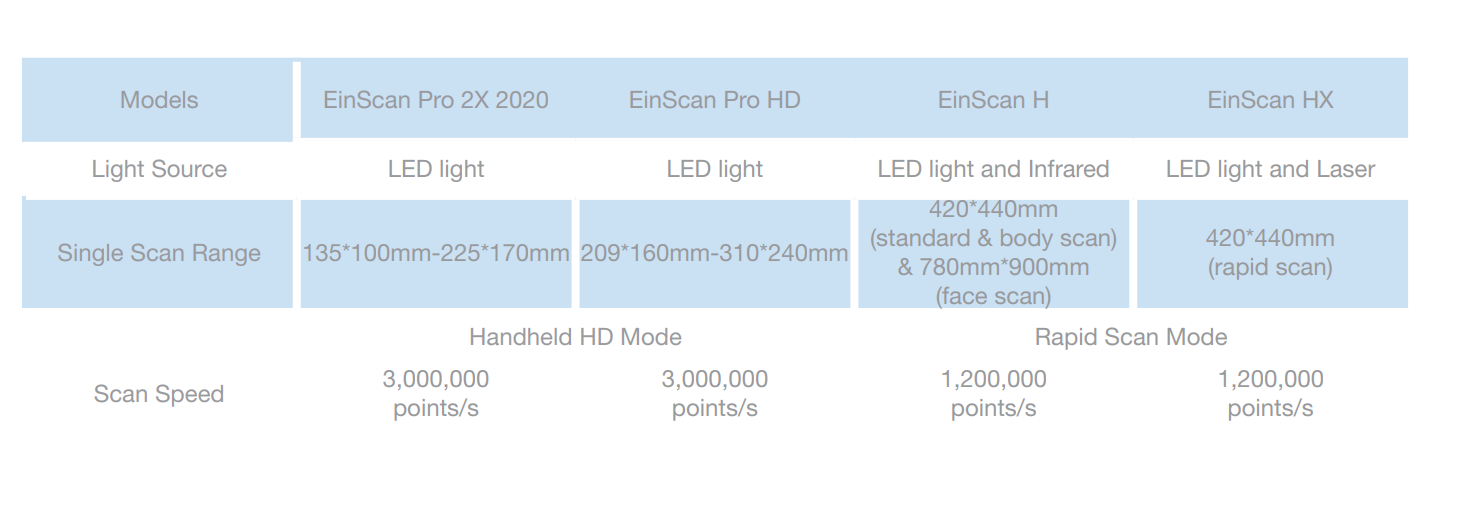 Hope this answers many of the questions you may have had! Growshapes is an HP Silver Partner of HP 3D scanning solutions and the official U.S. distributor of Shining 3D EinScan 3D scanners. We are now carry the eviXscan 3D scanner from Evatronix as well!
See the innovators on Growshapes’ social media channels to get the latest expert news on innovation in 3D digitization, then share your thoughts and join the conversation about 3D digital innovation with #digitize3D. eviXscan 3D FinePrecision by Evatronix can work with a robotic arm to automate the whole 3D scanning process. The eviXscan uses blue LED light source and is equipped with two fast 8.9 Mpix cameras of the latest generation with CMOS matrices is characterized by high accuracy of reproduction of even the smallest elements of precision mechanics. FinePrecision technology enables to achieve an accurate measurement of the dimensions of the scanned object (accuracy better than 6 µm, repeatability less than 3 µm). The detail of the scans obtained results from high density of recorded points (more than 1200 points per square millimeter of the scanned surface). A single scan can collect measurement data from a volume of 120 mm x 60 mm x 45 mm. Watch the video to learn more! Growshapes is an HP Silver Partner of HP 3D scanning solutions and the official U.S. distributor of Shining 3D EinScan 3D scanners. We are now carry the eviXscan 3D scanner from Evatronix as well!
See the innovators on Growshapes’ social media channels to get the latest expert news on innovation in 3D digitization, then share your thoughts and join the conversation about 3D digital innovation with #digitize3D. eviXscan 3D FinePrecision is an optical measuring device operating with blue LED light source. The scanner equipped with two fast 8.9 Mpix cameras of the latest generation with CMOS matrices is characterized by high accuracy of reproduction of even the smallest elements of precision mechanics. FinePrecision technology enables to achieve an accurate measurement of the dimensions of the scanned object (accuracy better than 6 µm, repeatability less than 3 µm). The detail of the scans obtained results from high density of recorded points (more than 1200 points per square millimeter of the scanned surface). A single scan can collect measurement data from a volume of 120 mm x 60 mm x 45 mm. The advantage of the eviXscan 3D FinePrecision scanner is the short scanning time. The combination of high-speed cameras and the modern DLP light projection system, whose signal triggers the cameras every time a new pattern is displayed, reduces the scan acquisition time to several hundred milliseconds. FinePrecision scans with high level of detail which is crucial when measuring elements of precision mechanics (micro rotors, small plastic elements made by injection molding, objects manufactured on CNC machines or by 3D printing). The scanner allows also precise 3D scanning of sharp-edged tools or components. FinePrecision can also be used in the scanning of implants, in prosthetics as well as in jewelry manufacturing and watchmaking industry. Its precision enables its use in the optimization of the 3D printing process. – Based on experience with our Heavy Duty scanners and discussions with our customers indicating areas where precise measurement and very detailed surface mapping was needed, we defined the requirements for a scanner that is a solution for these unfulfilled needs – said Kamil Góra, Product Manager of 3D Scanners in Evatronix. – According to these requirements our R&D department developed a product ready to meet everyday challenges of metrology labs with measurement of fine mechanics objects. Using cameras and projector optimized specifically for our scanner, allowed us to offer a product adjusted to the needs of its future users, really a scanner “from engineers for engineers”. eviXscan 3D FinePrecision can also be used in the field of predictive maintenance. The identification of microdamage to key components of production equipment (e.g. turbine blades) helps to prevent potential failures, which in turn reduces costs of downtimes. Fine Precision scanner is available for demonstration and ordering now with first deliveries planned for the second half of March 2021. Read more details and request a quote for the eviXscan 3D FinePrecision scanner from here. Growshapes is an HP Silver Partner of HP 3D scanning solutions and the official U.S. distributor of Shining 3D EinScan 3D scanners. We are now carry the eviXscan 3D scanner from Evatronix as well!
See the innovators on Growshapes’ social media channels to get the latest expert news on innovation in 3D digitization, then share your thoughts and join the conversation about 3D digital innovation with #digitize3D. New for EinScan Pro HD is the marker scan in HD Scan mode. 1. Marker Scan in HD Scan Mode 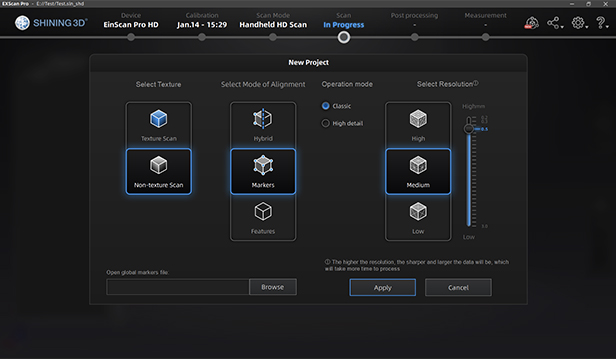 Open global marker was only available in Rapid Scan mode, which is very useful when scanning thin wall objects. Now it is avaible in “HD Scan" mode for EinScan Pro HD. The video shows the marker scan in Rapid Scan mode. 2. Multilingual Support  Growshapes is an HP Silver Partner of HP 3D scanning solutions and the official U.S. distributor of Shining 3D EinScan 3D scanners. We are now carrying the eviXscan 3D scanner from Evatronix too!
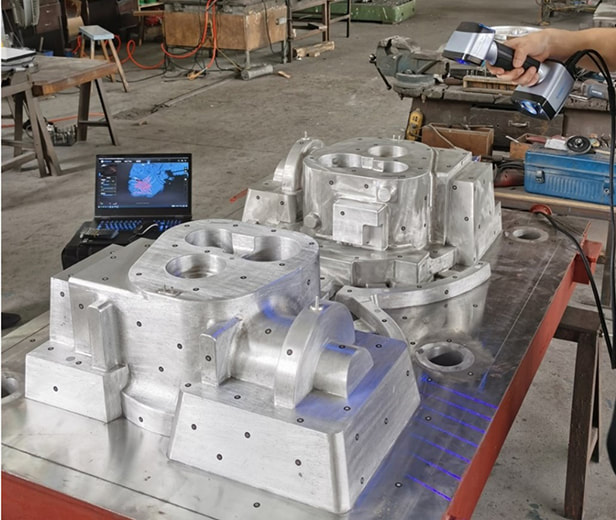
See the innovators on Growshapes’ social media channels to get the latest expert news on innovation in 3D digitization, then share your thoughts and join the conversation about 3D digital innovation with #digitize3D. Background With the rapid development and tremendous technical progress across industries in the past decade, the structural design of products has become more complex and there has been an unseen amount of diverse mold contours. With the proportion of free-form surfaces increasing and the precision requirements for mold processing rising, the discipline of mold measuring is faced with unprecedented challenges. Traditional mold measurement is conducted using contact measuring tools such as vernier measuring tools or micrometers. Only a few attributes such as mold width, height, and depth can be measured, while the curvature of the surfaces and sunken surfaces are difficult to measure with these tools. These measuring methods are not only complicated and time consuming, but it is also difficult to ensure measuring quality and accuracy of large-size molds, making mold measuring a very time-consuming and laborious part of industrial manufacturing. For this reason, non-contact 3D scanner measurement has gradually attracted the attention of the mold manufacturing industry and has become one of the main methods of industrial mold measuring due to its abilities of overcoming the deficits of traditional measuring methods and achieving high-quality inspection. The aluminum mold A mold factory made a 1.5m x 1m aluminum mold. Due to the significant differences in processing equipment and technology, in many cases the mold cannot reach the required accuracy after several production runs, hence mold measuring is a necessary step in the manufacturing process of industrial products. Due to the large size of the aluminum mold, the traditional manual measuring tools are not able to obtain the comprehensive data information of the mold accurately. In order to improve the current dilemma of poor measuring results and inefficient measuring work, the mold factory chose to use a handheld 3D scanner to perform 3D measurement of the mold.
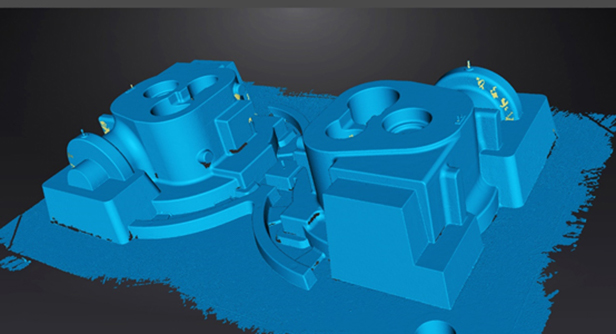
Measurement and Analysis Process Step 1: Application of Reference Points For this scan the laser scan mode of EinScan HX was selected. Before scanning, reference points were applied on the reflective aluminum mold. 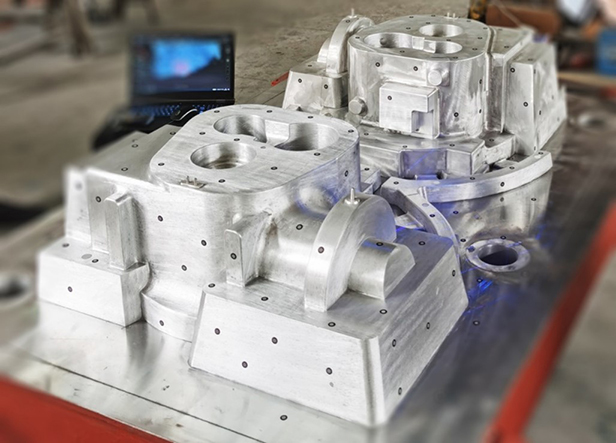 Step 2: 3D Scanning The laser mode has a scanning speed of 480,000 points/sec. The technician spent only 10 minutes to obtain the complete high-precision 3D model data of the aluminum mold directly.
Step 3: 3D Measurement Data and Analysis In order to check whether the aluminum mold meets the accuracy requirements, the scanned aluminum mold data and a digital model of the original design were imported into the measuring software Geomagic Control X. After the coordinates were aligned, the deviation comparison analysis was performed using the chromatogram to obtain the annotated deviation diagram. Finally the measuring report was exported. 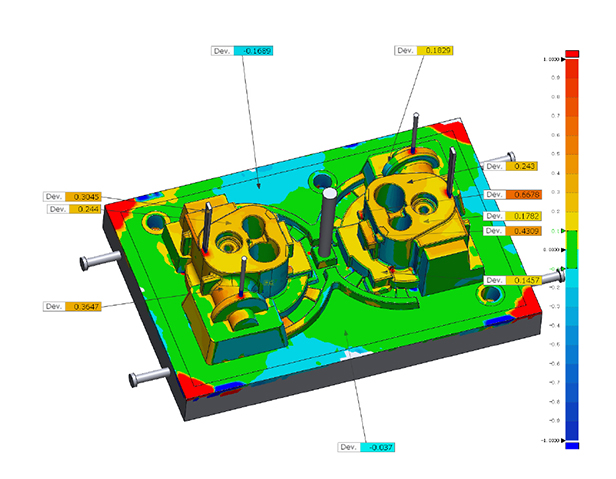 In the case study above, we introduced the application of EinScan HX using the laser mode to measure large-size aluminum mold. The scanning process took less than 30 minutes from applying reference points to 3D scanning to obtaining the final comparison analysis report. This method saved a lot of time in relation to traditional measuring methods and solved many parametrical problems which cannot be detected by traditional measuring tools. In addition, when opting for the rapid scan mode of EinScan HX, the blue LED light source can be used to scan and obtain the 3D data of mold parts with obvious characteristics without the need of sticking marker points. This improves the efficiency of the whole data acquisition process and satisfies various needs of users, as well as providing a fast forward and feasible solution for product measuring and reverse engineering. If you want to learn more about EinScan HX, you can read the full product review here. Growshapes is an HP Silver Partner of HP 3D scanning solutions and the official U.S. distributor of Shining 3D EinScan 3D scanners. We are now carrying the eviXscan 3D scanner from Evatronix too!
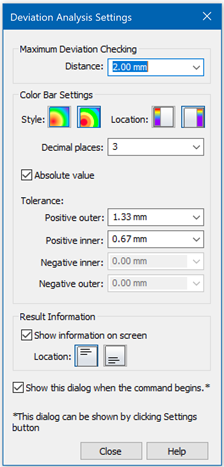
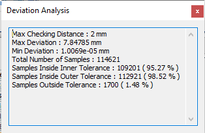
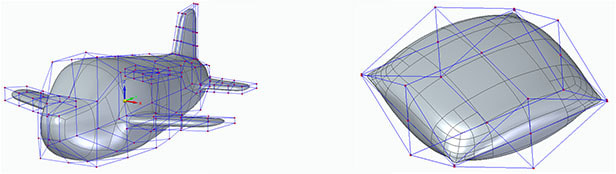
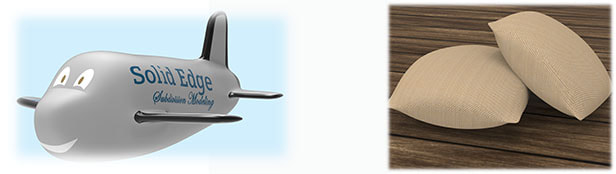
See the innovators on Growshapes’ social media channels to get the latest expert news on innovation in 3D digitization, then share your thoughts and join the conversation about 3D digital innovation with #digitize3D. Check out the newly released Solid Edge 2021 Shining 3D Edition, packed with some hefty improvements in the areas of Reverse Engineering and Part Modeling functions, as well as a more adaptive UI. Reverse EngineeringPerformance The reverse engineering functions of Solid Edge underwent a serious makeover in terms of performance improvement. Users will be able to benefit from an increased performance efficiency of functions like mesh deletion, hole filling and automatic region detection. 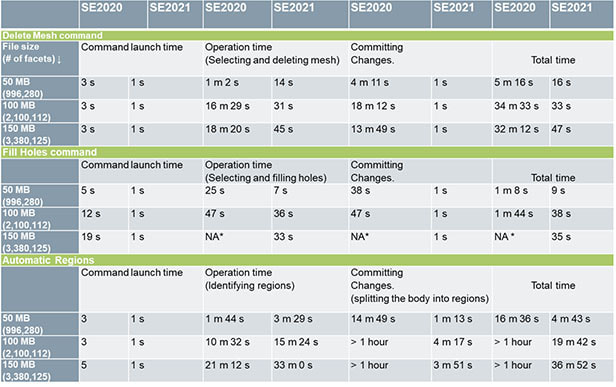 Solide Edge 2020 vs. 2021 Comparison Deviation Analysis  Deviation Analysis is a new function in the Reverse Engineering toolkit of Solid Edge 2021 Edition. As new tool in the roundup of Solid Edge functions, Deviation Analysis is a routine form of troubleshooting. A deviation detection system allows seamless collaboration across the manufacturing workflow chain and quick identification of the initial causes of production issues. When speed is of utmost importance, a robust deviation detection system, along with a good process for analyzing the resulting data, is essential for instant problem solving. This inspection method based on point-by-point comparison of two objects will help users of Solid Edge 2021 edition to thoroughly compare and evaluate the differences between B-Rep and Mesh models, or between two Mesh models. Initial features include:
Solid Edge 2021 edition adopts the color coding of simulation results to deliver an understandable visual delivery of inspection results. Inside and outside deviation are shown as positive and negative values. 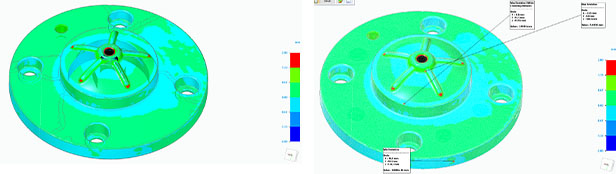 Deviation Analysis
Brush & Box selection A new Brush and Box selection tool has been added
Part Modelling
Adaptive UI  Solid Edge 2021 Edition User Interface Introducing the concept of machine learning (ML) and artificial intelligence (AI) with its Adaptive UI, Solid Edge 2021 Edition will change the ways of working fundamentally. A new “Predict Commands” toolbar has been integrated above the graphics area. The Predictive UI will learn the designer’s usage behaviour of the software and then predict the next command that the user will need, giving them 10 choices to select from.  Possibility to select from 10 different options on how to proceed in the workflow, made possible through ML and AI in Solid Edge 2021 Edition. OS: Windows *******Note:Please deactivate your current Solid Edge Shining3D Edition first before you install this version******** Growshapes is an HP Silver Partner of HP 3D scanning solutions and the official U.S. distributor of Shining 3D EinScan 3D scanners. We are now carrying the eviXscan 3D scanner from Evatronix too!
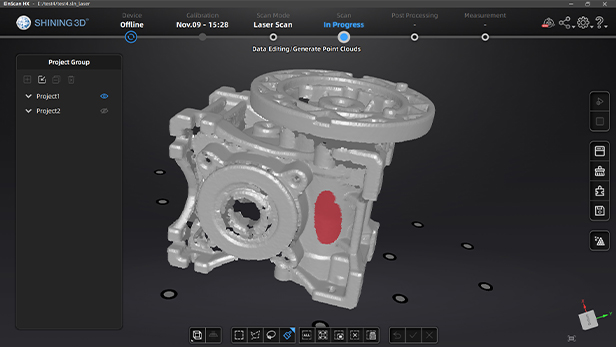
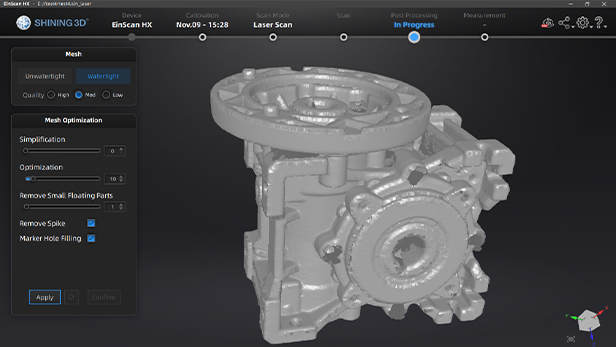
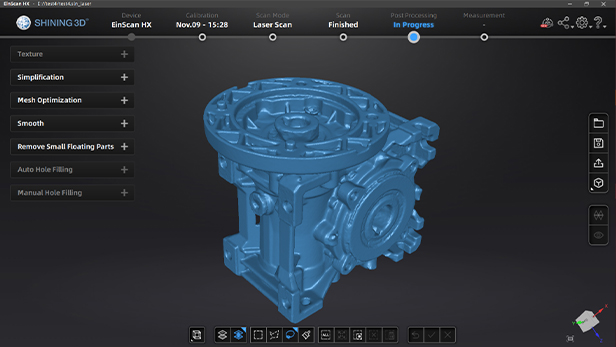
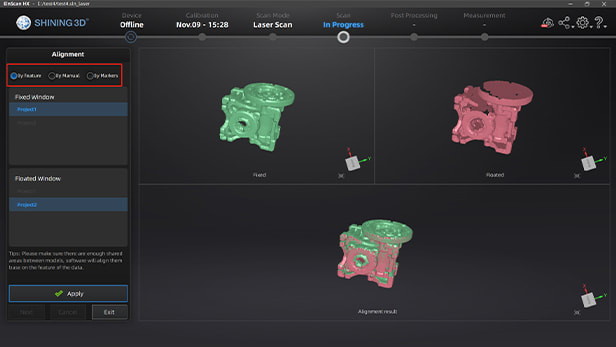
See the innovators on Growshapes’ social media channels to get the latest expert news on innovation in 3D digitization, then share your thoughts and join the conversation about 3D digital innovation with #digitize3D. New features have been added to the EinScan HX, so download the latest EinScan HX software now! 1. New Featuresa) Addition of right-click menu The Right-click menu was added in which you can do an unselect or change model view. 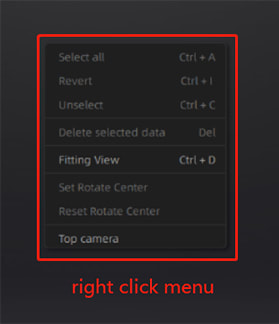 b) Selection tools Now you can select data using polygon, rectangular or paintbrush.
You can also do select "all data: or "select a connected domain". The latter will help you select all connected data and easily delete floating error points.  c) Improved UI for meshing and post-processing
|




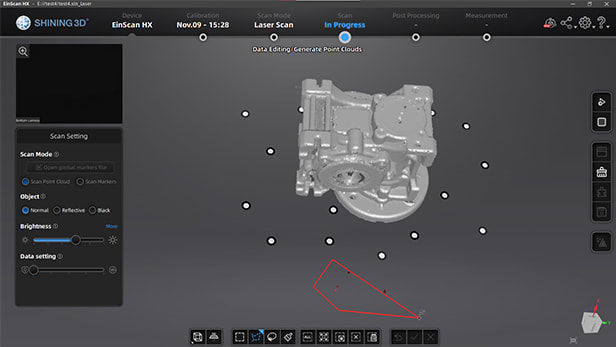
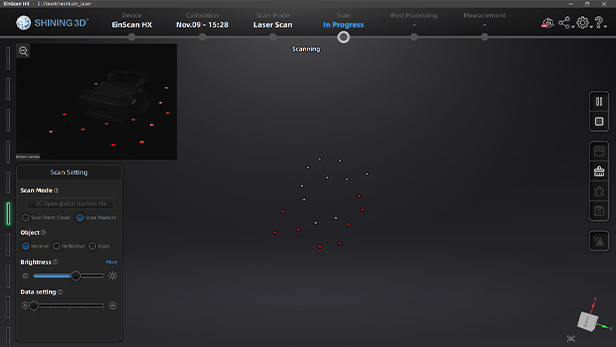
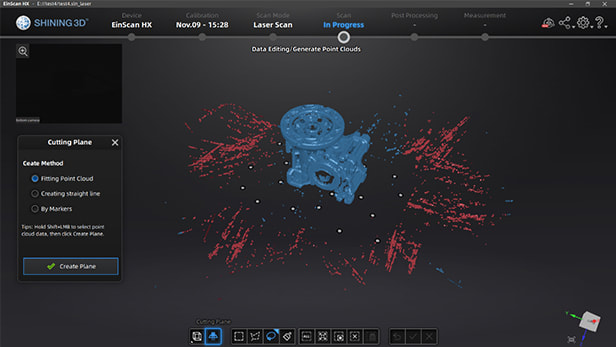 | To create a cutting plane by fitting point cloud, you just select table surface data, and the software will fit the plane based on selected data. |
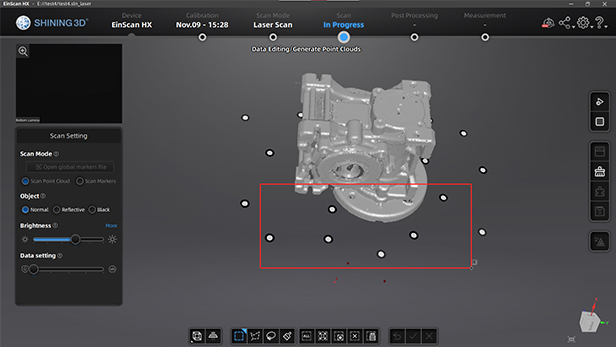
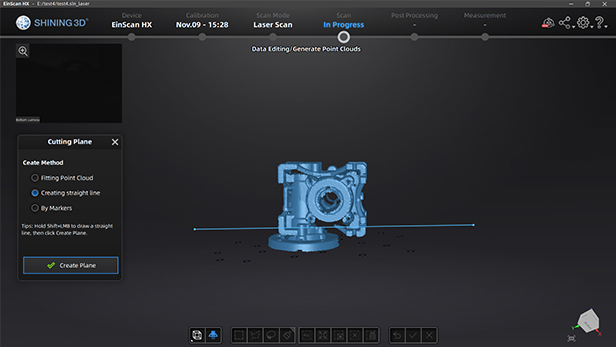 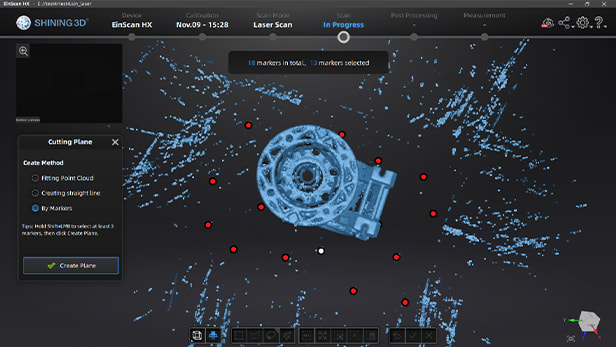 | You can also set the plane by manually creating a straight line. The 3rd option is to put markers on the table surface and using them to define the cutting plane. |
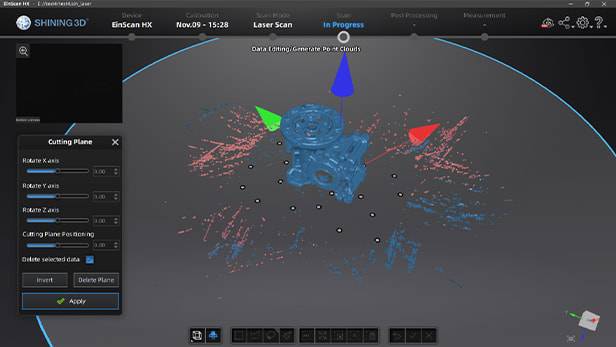 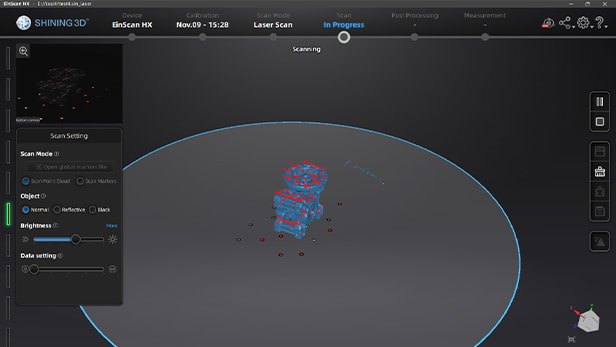 | Choose to delete selected data/invert cutting plane/delete cutting plane. You can invert your selection to decide which side of the plane should be kept. Once the cutting plane is set, you can 3D scan without capturing the table surface. |
Also Shining3D is now offering a new reverse engineering service!
Do you want to create a CAD model from the scanned data for reproduction, studying and analyzing, inspection, archiving or product improvements? Take advantages of the experience of the SHINING 3D Reverse Engineering Team, we are here is here to help you deliver high quality 3D CAD models with reverse engineering services cost effectively.
Do you want to create a CAD model from the scanned data for reproduction, studying and analyzing, inspection, archiving or product improvements? Take advantages of the experience of the SHINING 3D Reverse Engineering Team, we are here is here to help you deliver high quality 3D CAD models with reverse engineering services cost effectively.
| FREE REVERSE ENGINEERING SERVICE FOR EINSCAN HX USERS : Before 12.31.2020, all EinScan HX user can get a deal for Reverse Engineering Service from us. Each customer of EinScan HX can submit a project of Reverse Engineering. Projects that takeless than 3 hours to complete will be free of charge. While for the time exceeding 3 hours, we will make you a reasonable offer. Contact us now to reserve your spot! | 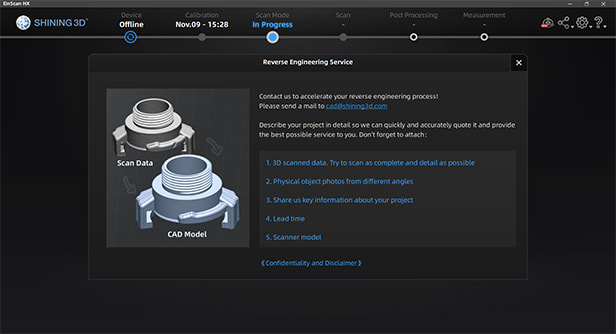 |
Growshapes is an HP Silver Partner of HP 3D scanning solutions and the official U.S. distributor of Shining 3D EinScan 3D scanners. We are now carrying the eviXscan 3D scanner from Evatronix too!
See the innovators on Growshapes’ social media channels to get the latest expert news on innovation in 3D digitization, then share your thoughts and join the conversation about 3D digital innovation with #digitize3D.
See the innovators on Growshapes’ social media channels to get the latest expert news on innovation in 3D digitization, then share your thoughts and join the conversation about 3D digital innovation with #digitize3D.
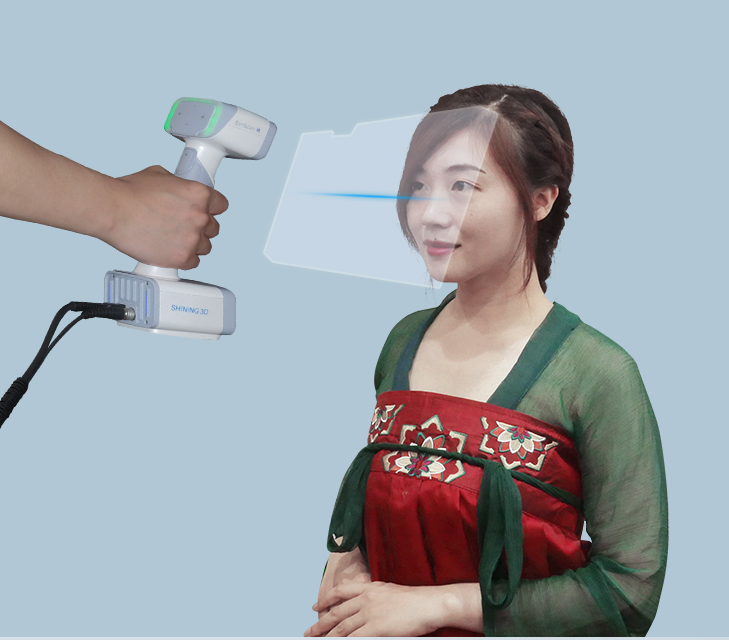
EinScan H
The new EinScan H combines Infrared & LED in one unit, tailored to 3D scanning human face & body scanning as well as large objects with color texture.
The new EinScan H combines Infrared & LED in one unit, tailored to 3D scanning human face & body scanning as well as large objects with color texture.
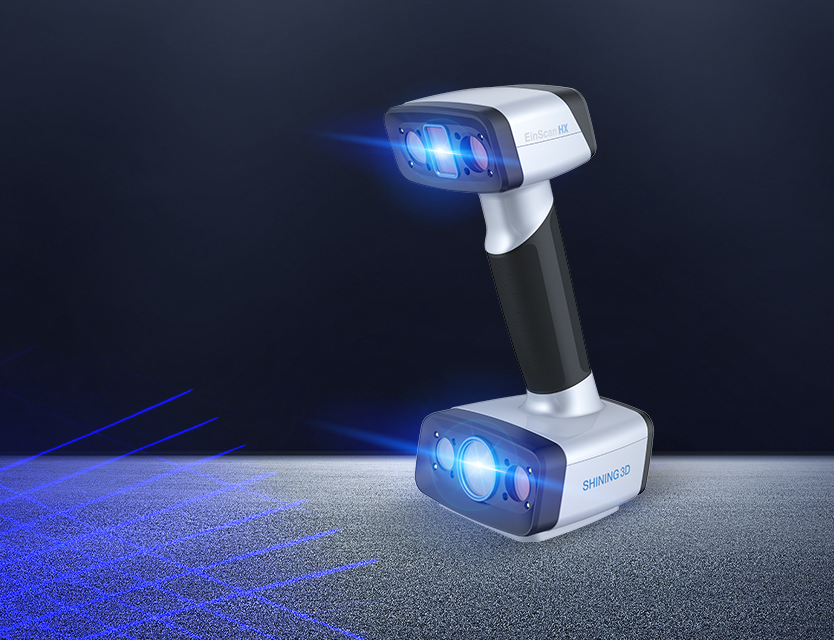
EinScan HX
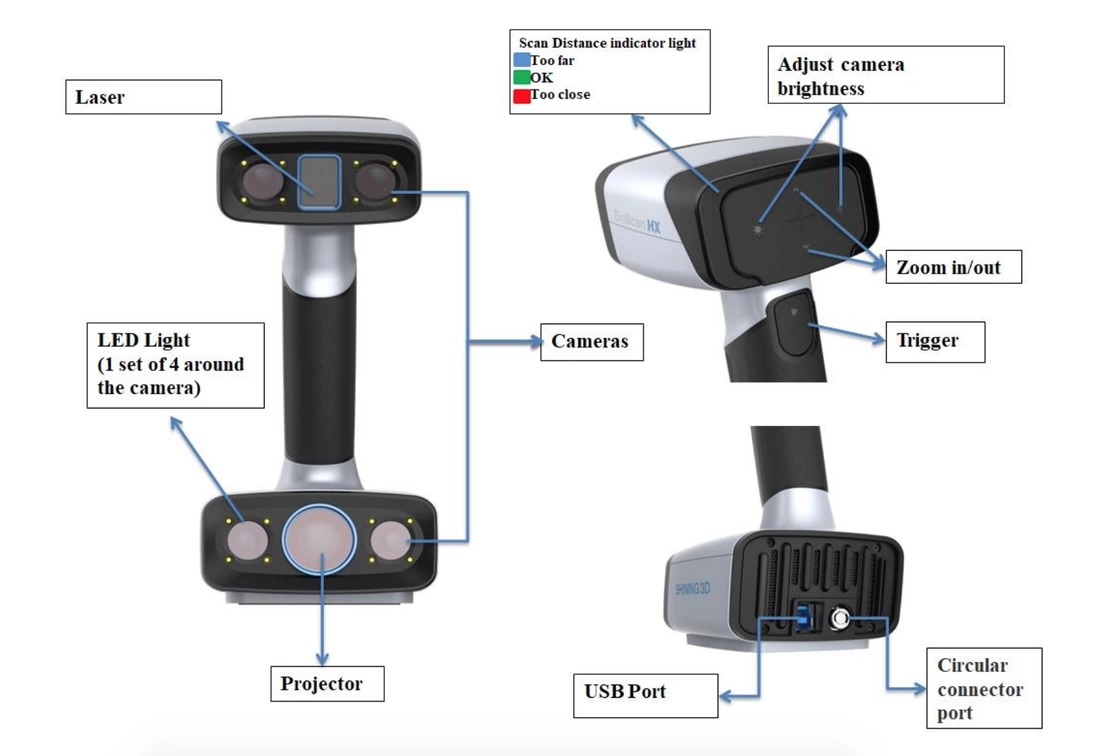
The new EinScan HX combines blue laser and blue light in one unit that enables 3D scanning of reflective and dark surfaces with high accuracy.
Growshapes is an HP Silver Partner of HP 3D scanning solutions and the official U.S. distributor of Shining 3D EinScan 3D scanners. We are now carrying the eviXscan 3D scanner from Evatronix too!
See the innovators on Growshapes’ social media channels to get the latest expert news on innovation in 3D digitization, then share your thoughts and join the conversation about 3D digital innovation with #digitize3D.
See the innovators on Growshapes’ social media channels to get the latest expert news on innovation in 3D digitization, then share your thoughts and join the conversation about 3D digital innovation with #digitize3D.
Growshapes
Provider of leading edge 3D scanning products and services. We see 3D!
Archives
March 2024
December 2023
October 2023
June 2023
April 2023
February 2023
October 2022
September 2022
August 2022
May 2022
April 2022
March 2022
February 2022
November 2021
October 2021
August 2021
April 2021
March 2021
January 2021
December 2020
November 2020
September 2020
August 2020
June 2020
April 2020
March 2020
January 2020
December 2019
November 2019
October 2019
June 2019
May 2019
January 2019
December 2018
November 2018
October 2018
September 2018
August 2018
July 2018
June 2018
May 2018
April 2018
March 2018
February 2018
January 2018
December 2017
November 2017
October 2017
September 2017
August 2017
July 2017
April 2017
February 2017
January 2017
December 2016
November 2016
October 2016
July 2016
June 2016
May 2016
April 2016
January 2016
December 2015
November 2015
October 2015
September 2015
July 2015
June 2015
April 2015
March 2015
January 2015
December 2014
November 2014
October 2014
September 2014
August 2014
July 2014
June 2014
May 2014
April 2014
March 2014
February 2014
January 2014
Categories
All
3D Printing
3D Scan File Ouput
3D Scanner Setup
3D Scanning
3D Scanning Colorful Objects
3D Scanning Dark Surfaces
3D Scanning Faces
3D Scanning Highly Details Objects
3D Scanning Humans
3D Scanning Large Objects
3D Scanning Shiny Surfaces
3D Scanning Small Objects
3D Visualization
Additive Manufacturing
Afinia
Alignment In 3D Scanning
Augumented Reality (AR)
Blue Laser
Blue Light
DAVID 3D Scanners
Design
Desktop 3D Printers
Ecology/Sustainable
Education
EinScan 3D Scanners
EinScan 3D Scanner Software
Einscan H
EinScan H2
EinScan HX
EinScan Pro 2X
EinScan Pro 2X 2020
EinScan Pro 2X Plus
EinScan Pro HD
EinScan SE/SP
Einstar
Engineering
Evatronix EviXscan
Field Of View
FormLabs
Geomagic
HP Structured Light Scanner Pro S3
Industrial Kit
Infrared
Laser 3D Scanning
MacOS
Makerbot
Makerspace
Market SIze
Mcor IRIS 3D Printer
Medical
Mesh Optimization
Netfabb Software
Open Technologies Cronos 3D Scanner
Orthotics And Prosthetics
Product Developers
Prototyping
Reverse Engineering
Shining3D
Software Updates
Solid Edge Software
Structured Light 3D Scanning
Transcan C
White Light
Workforce Development
 RSS Feed
|
Vertical Divider
GROWSHAPES963 Topsy Ln STE 306 PMB 245, Carson City, NV 89705
+1 408-667-6877 Email: info@growshapes.com Stay connected |
Menu |


|
©2024 Growshapes LLC. All rights reserved.